Diamond CMS + Software || SmartPSS/Add Device via IP
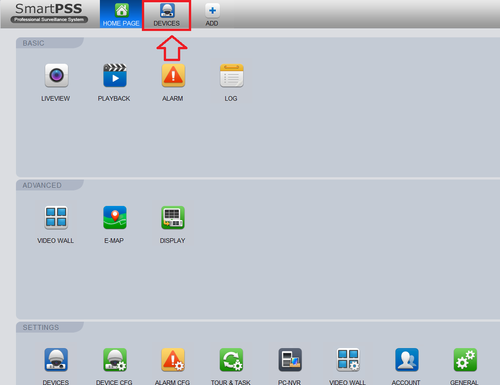
1. Open SmartPSS, and click, "Devices"
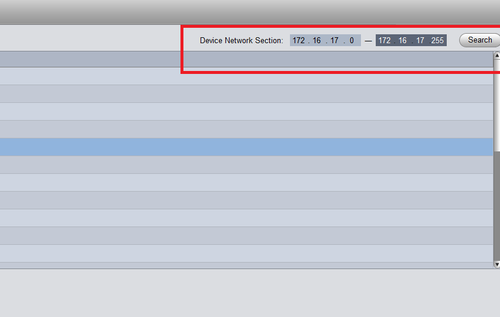
2. To search the IP address of the device recorder Input the IP range of DVR/NVR to be added ➞ Select "Search".
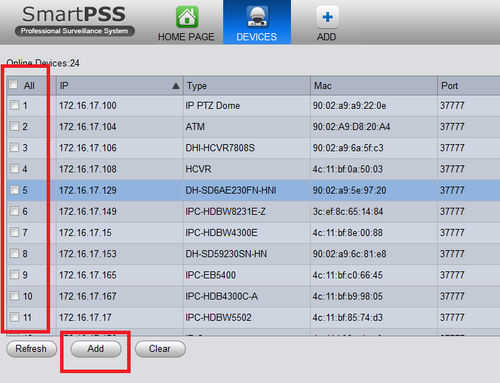
3. Select the DVR/NVR to be added ➞ Select "Add".
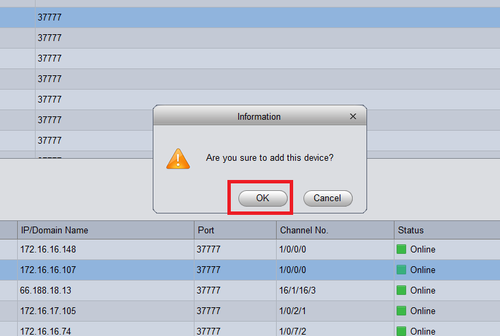
4. Select "OK"
5. For Manual Add Select "Manual Add".
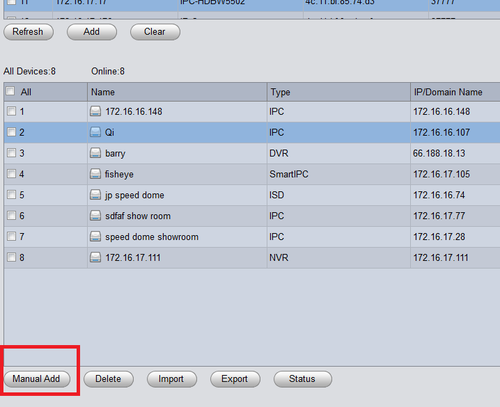
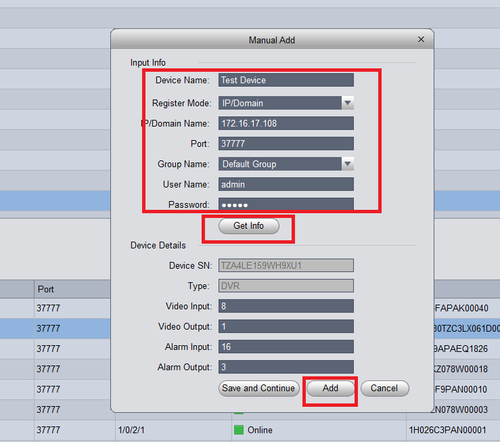
6. Input Information ➞ Select "Get Info". Device details will automatically generate. ➞ Select "Add" and the DVR/NVR will be added to the list of live devices for SmartPSS.
Related Articles
Emerald CMS + Software || Add device via IP
(This demonstration was done on MacOS 12.0 Monterey) 1) First Open ENS Station and go into Device Management. 2) There are two ways of adding a system with the IP Address. We’ll first demonstrate how to add a device manually by looking under Device ...
Diamond CMS + Software || SmartPSS/Add Device P2P
1. Locate the serial number of your NVR or DVR. The serial number can be found at the following locations: On the underside or side of the unit In the web interface, under Info->Version On the system interface under Main Menu->Settings->Network->P2P ...
Emerald CMS + Software || Add device with IP ||
ENS Station: Add Device via IP (This demonstration was done on MacOS 12.0 Monterey) 1) First Open ENS Station and go into Device Management. 2) There are two ways of adding a system with the IP Address. We’ll first demonstrate how to add a device ...
Diamond CMS + Software || SmartPSS MAC Installation
1. Download SmartPSS 2. Go to downloads and select the SmartPSS file. 3. Highlight SmartPSS ➞ Right Click and a sub menu will show ➞ Click on Open. 4. The MAC OSx security will block the installation of the "SmartPSS_Beta" software. 5. Go to the ...
Diamond CMS + Software || SmartPSS/View Device
1. Launch SmartPSS. 2. Click Live View 3. The device tree on the left will show all devices added to SmartPSS. 4. Click on a device then drag and drop to a tile in the center of the screen to load the stream 5. Use the Layout Options in the bottom ...