Diamond CMS + Software || SmartPSS/Fisheye Dewarp
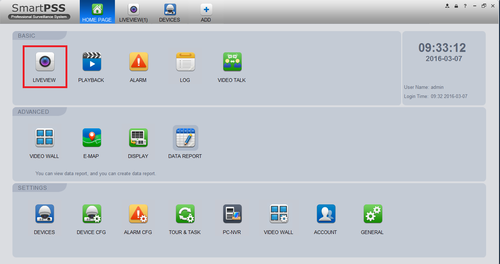
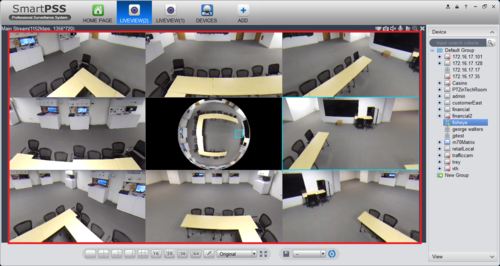
1. Log in to SmartPSS and click on Live View.
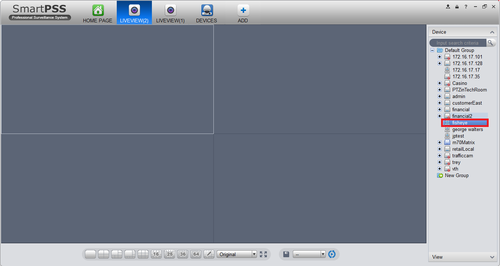
2. Select the fisheye that you added.
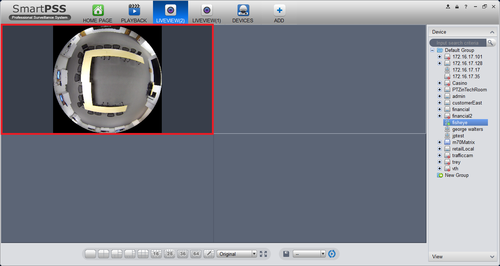
3. Select the liveview of the fish eye.
4. Select the fisheye view that you would like.
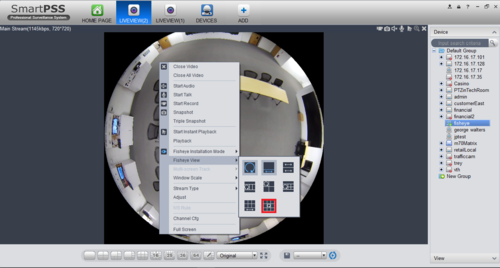
5. You may now select each individual view and move as you like.
Related Articles
Diamond CMS + Software || SmartPSS Notice
The SmartPSS program is EOL on Windows The 2020 release is the final version for the software with Diamond recorders. No future updates. Migrate to SmartPSS Lite (256 Ch free) here: ...
Diamond CMS + Software || SmartPSS MAC Installation
1. Download SmartPSS 2. Go to downloads and select the SmartPSS file. 3. Highlight SmartPSS ➞ Right Click and a sub menu will show ➞ Click on Open. 4. The MAC OSx security will block the installation of the "SmartPSS_Beta" software. 5. Go to the ...
Diamond CMS + Software || SmartPSS/Playback
1. Launch SmartPSS. 2. Click Playback 3. The device tree on the left will show all devices added to SmartPSS. For devices with multiple channels/streams, Click the icon to expand the tree to see all channels. 5. Use the checkbox next to each channel ...
Diamond CMS + Software || Playback Video From SmartPSS
Download and install Smartpss Run and login to SmartPss. Click 'Playback' Select cameras for playback Select 'Record'. Then Select the 'Record Type', Stream Type' and 'Time'. Click 'Search' and the Playback will show
Diamond CMS + Software || SmartPSS/View Device
1. Launch SmartPSS. 2. Click Live View 3. The device tree on the left will show all devices added to SmartPSS. 4. Click on a device then drag and drop to a tile in the center of the screen to load the stream 5. Use the Layout Options in the bottom ...