Diamond CMS + Software || SmartPSS MAC/M1 Chip Installation
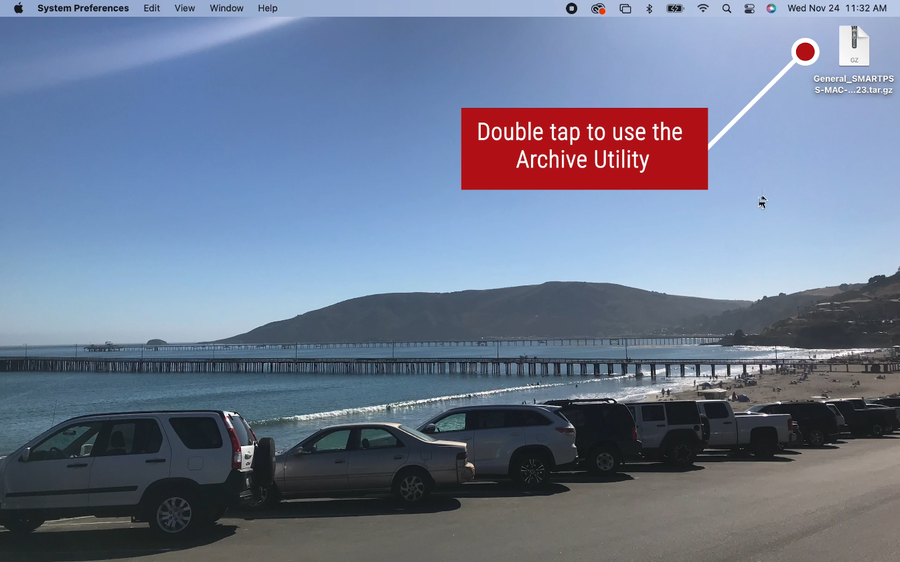
1. Double click on the installer to use the archive Utility
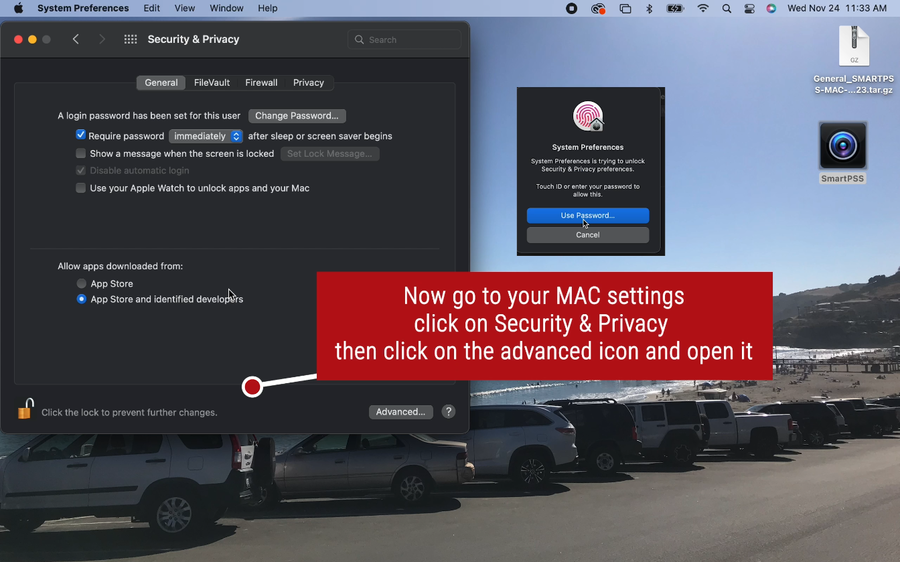
2. Now go to your MAC settings and click on Security and Privacy
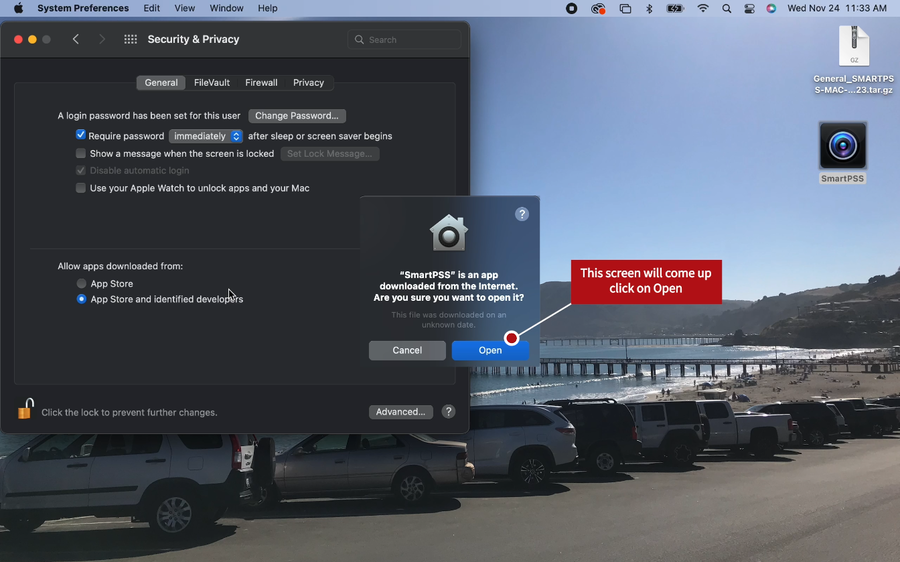
3. A pop up will come up, click on Open
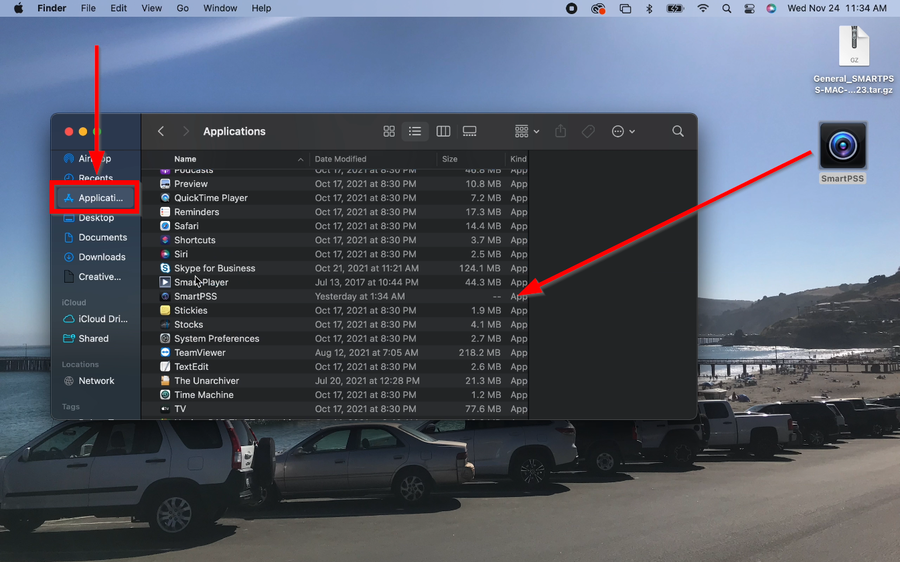
4. SmartPSS will then be extracted to your desktop. Do not open SmartPSS on the desktop. Drag SmartPSS to the Application Folder by opening Finder.
5. You can now open SmartPSS and enter a new password.
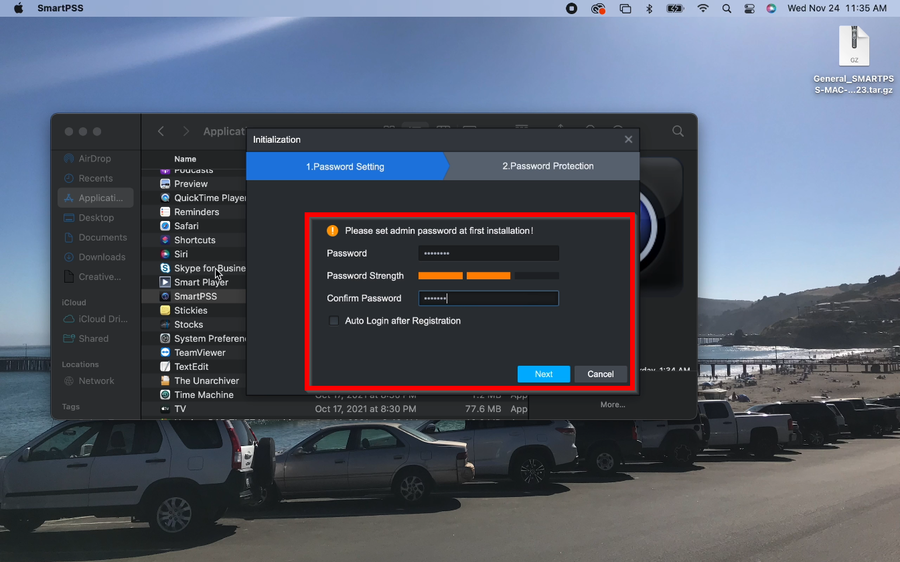
6. Enter security questions and answers in case the password is forgotten.
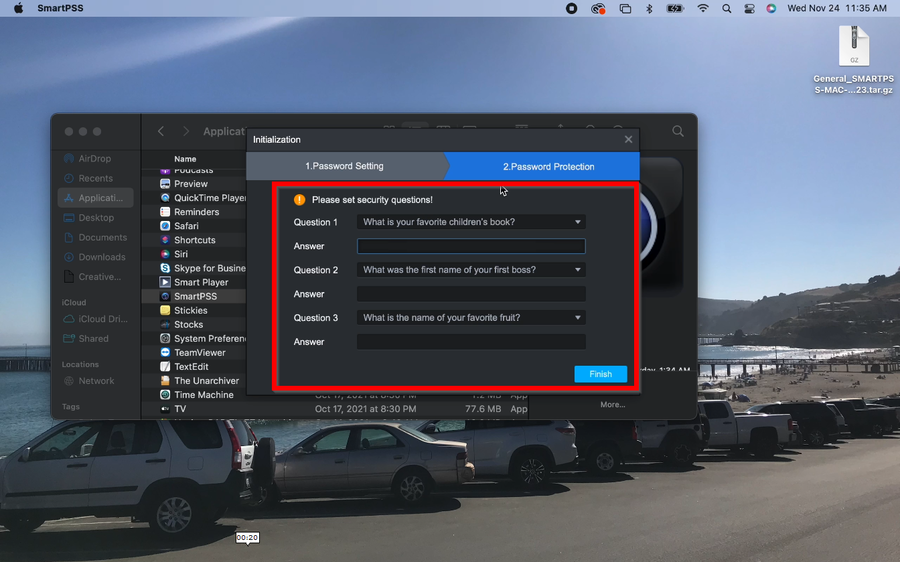
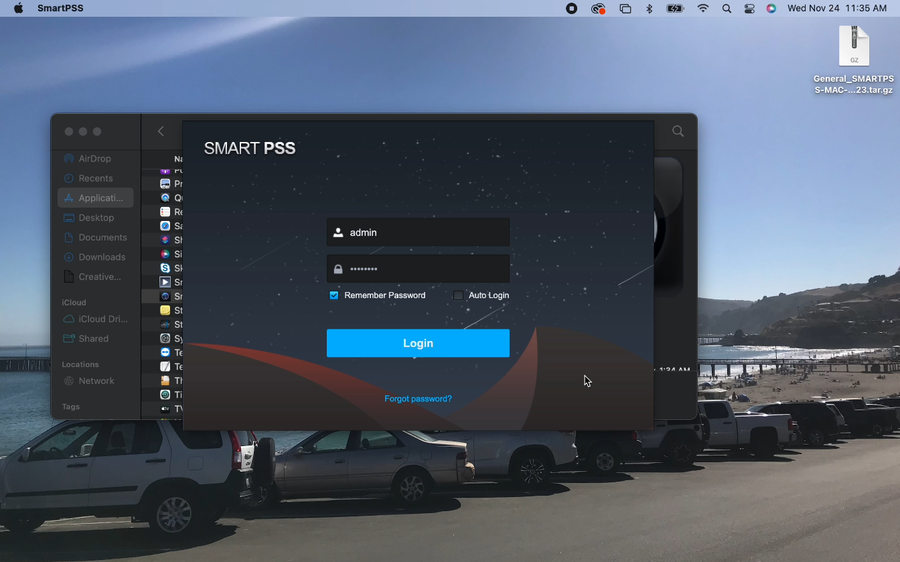
7. SmartPSS is now installed
Related Articles
Diamond CMS + Software || SmartPSS MAC Installation
1. Download SmartPSS 2. Go to downloads and select the SmartPSS file. 3. Highlight SmartPSS ➞ Right Click and a sub menu will show ➞ Click on Open. 4. The MAC OSx security will block the installation of the "SmartPSS_Beta" software. 5. Go to the ...
Diamond CMS + Software || SmartPSS Notice
The SmartPSS program is EOL on Windows The 2020 release is the final version for the software with Diamond recorders. No future updates. Migrate to SmartPSS Lite (256 Ch free) here: ...
Diamond CMS + Software || Install SmartPSS Mac OS
https://drive.google.com/drive/u/0/folders/1xpMeflO3on40WgrACTg_1GNTzUxvW7OL 1. Go to application folder. 2. Copy the app to the application folder, and make sure you can see it in the launchpad. 3. Go to Security & Privacy. 4. Select allow apps ...
Diamond CMS + Software || SmartPSS/Playback
1. Launch SmartPSS. 2. Click Playback 3. The device tree on the left will show all devices added to SmartPSS. For devices with multiple channels/streams, Click the icon to expand the tree to see all channels. 5. Use the checkbox next to each channel ...
Diamond CMS + Software || Playback Video From SmartPSS
Download and install Smartpss Run and login to SmartPss. Click 'Playback' Select cameras for playback Select 'Record'. Then Select the 'Record Type', Stream Type' and 'Time'. Click 'Search' and the Playback will show