Diamond CMS + Software || SmartPSS/Playback

Diamond CMS + Software || SmartPSS/Playback

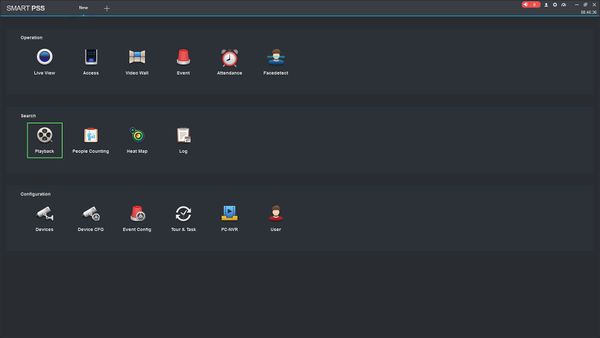
1. Launch SmartPSS.
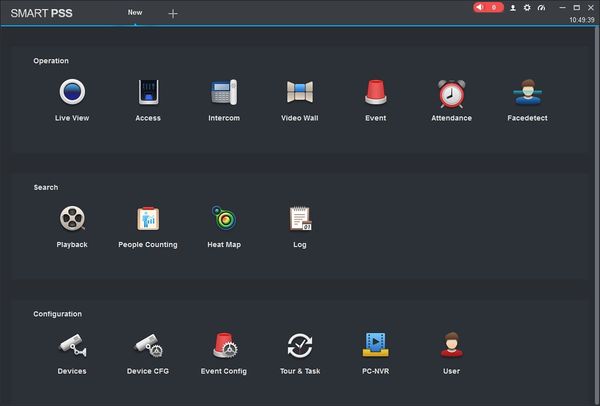
Two Monitors Smart PSS -1.jpg

2. Click Playback

Playback SmartPSS - 1.jpg


3. The device tree on the left will show all devices added to SmartPSS.
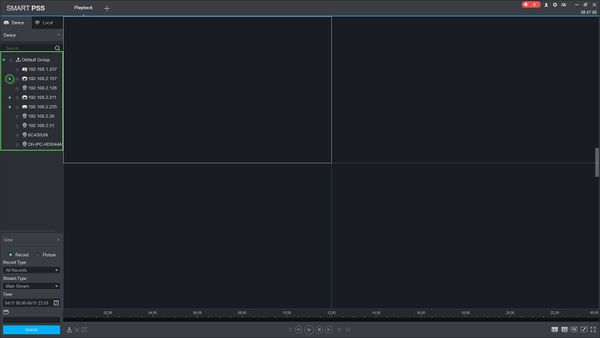
Playback SmartPSS - 2.jpg

For devices with multiple channels/streams, Click the Device tree expand icon.jpg icon to expand the tree to see all channels.

5. Use the checkbox next to each channel you wish to search for.
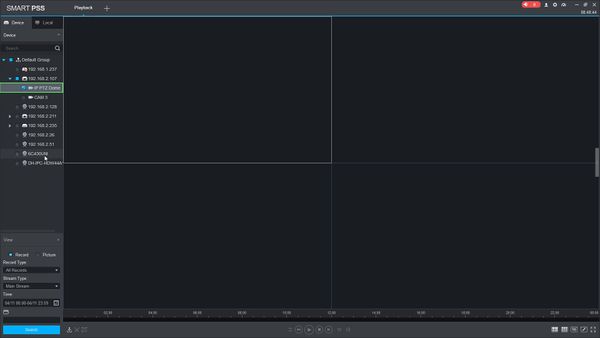
Playback SmartPSS - 3.jpg

6.You can configure the parameters of the search using the drop down boxes on the left side of the screen:
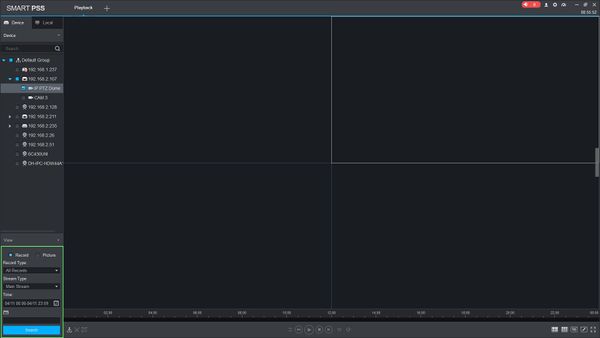
Playback SmartPSS - 4.jpg

  • Record Type - choose the type of recording records to search for, including Events
  • Stream Type - Main Stream, Sub Stream
  • Time - Click the Time window to enter the time frame to search for - Please note this value cannot exceed a 24 hour period


Click 'Search' to begin a search based on the parameters.


7. The search results will appear in the timeline below the center window. Click the floating bar on the right side of the screen to open the Record Tray
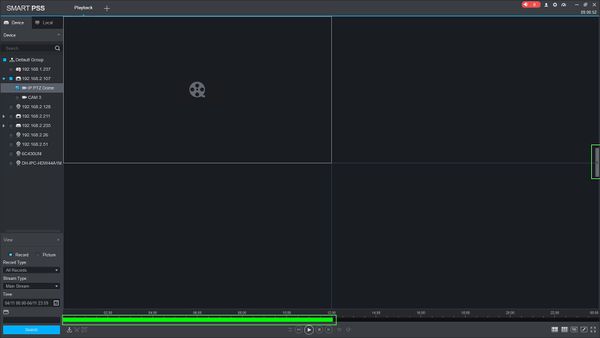
Playback SmartPSS - 5.jpg

8. Double click an entry in the list to begin playback
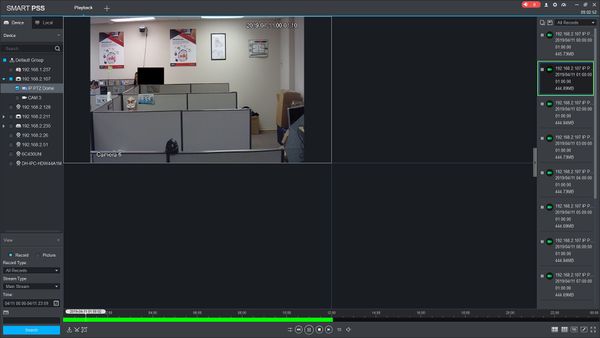
Playback SmartPSS - 6.jpg

9. Use the controls below the video pane to control playback
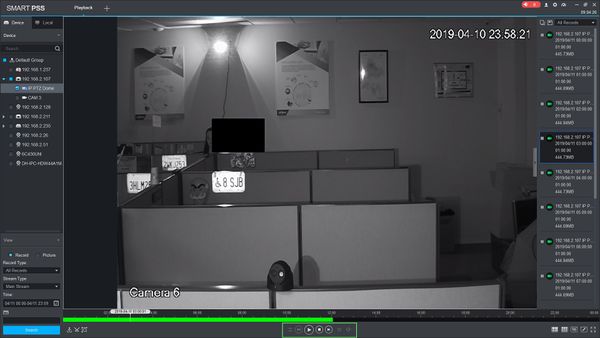
Playback SmartPSS - 7.jpg

There are options for forward and reverse playback, playback speed, and to enable audio


    • Related Articles

    • Diamond CMS + Software || Playback Video From SmartPSS

      Download and install Smartpss Run and login to SmartPss. Click 'Playback' Select cameras for playback Select 'Record'. Then Select the 'Record Type', Stream Type' and 'Time'. Click 'Search' and the Playback will show
    • Diamond CMS + Software || SmartPSS/Backup SD Card

      1. From the Home Page on SmartPSS select the “PlayBack Button” 2. From the PlayBack Page on the right hand side select “Camera or Channel” for the footage you need to backup. Multiple cameras or channels may be selected. 3 . Select "Record or ...
    • Diamond CMS + Software || SmartPSS Notice

      The SmartPSS program is EOL on Windows The 2020 release is the final version for the software with Diamond recorders. No future updates. Migrate to SmartPSS Lite (256 Ch free) here: ...
    • Diamond CMS + Software || SmartPSS MAC Installation

      1. Download SmartPSS 2. Go to downloads and select the SmartPSS file. 3. Highlight SmartPSS ➞ Right Click and a sub menu will show ➞ Click on Open. 4. The MAC OSx security will block the installation of the "SmartPSS_Beta" software. 5. Go to the ...
    • Diamond CMS + Software || SmartPSS/View Device

      1. Launch SmartPSS. 2. Click Live View 3. The device tree on the left will show all devices added to SmartPSS. 4. Click on a device then drag and drop to a tile in the center of the screen to load the stream 5. Use the Layout Options in the bottom ...