Diamond CMS + Software || SmartPSS/View Device

Diamond CMS + Software || SmartPSS/View Device

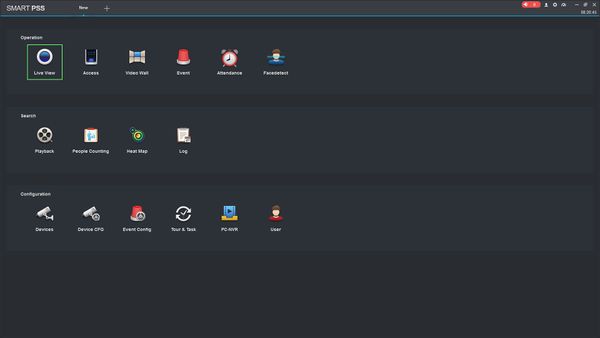
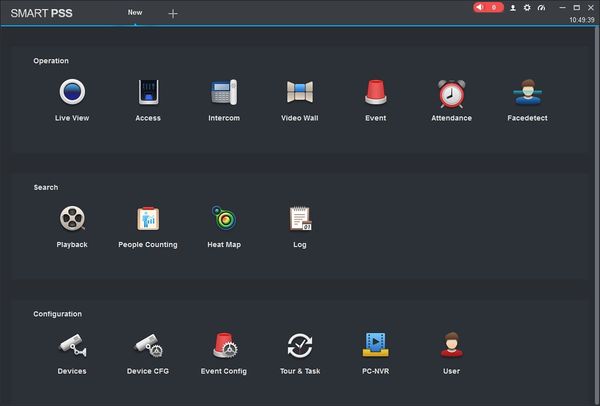
1. Launch SmartPSS.
Two Monitors Smart PSS -1.jpg

2. Click Live View

How To View Device SmartPSS - 1.jpg

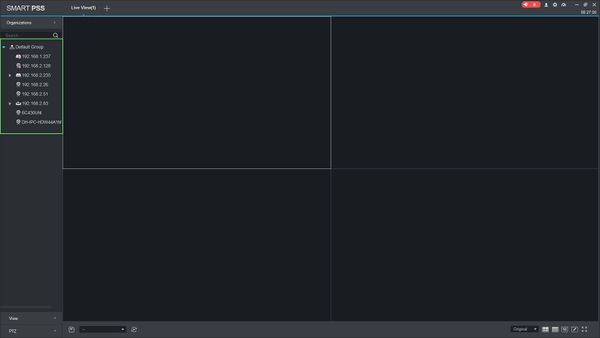
3. The device tree on the left will show all devices added to SmartPSS.
How To View Device SmartPSS - 2.jpg

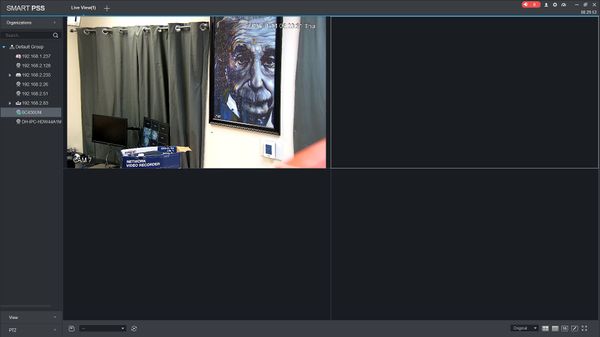
4. Click on a device then drag and drop to a tile in the center of the screen to load the stream
How To View Device SmartPSS - 3.jpg

5. Use the Layout Options in the bottom right of the screen to adjust the Live View to 2X2, 3x3, 4x4, or create your own custom layout

How To View Device SmartPSS - 4.jpg

6. Double click within a video pane to bring the stream full screen
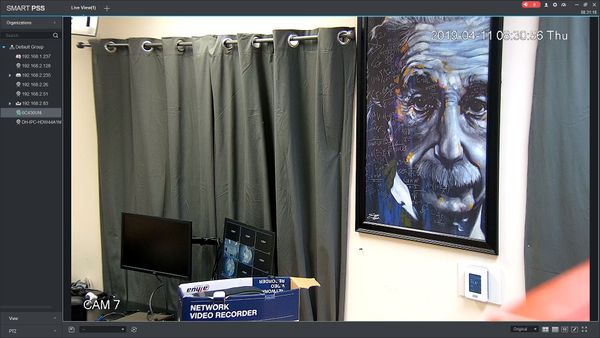
How To View Device SmartPSS - 5.jpg


    • Related Articles

    • Diamond CMS + Software || SmartPSS/Add Device P2P

      1. Locate the serial number of your NVR or DVR. The serial number can be found at the following locations: On the underside or side of the unit In the web interface, under Info->Version On the system interface under Main Menu->Settings->Network->P2P ...
    • Diamond CMS + Software || SmartPSS/Smart Track

      1. From the Smart Pss home page select Live View. 2. On the right hand side select and click on device > right click to bring up sub menu > Select "Smart Track Config" which will bring you to the Smart Track Config Menu. 3.To ensure linkage accuracy, ...
    • Diamond CMS + Software || SmartPSS Notice

      The SmartPSS program is EOL on Windows The 2020 release is the final version for the software with Diamond recorders. No future updates. Migrate to SmartPSS Lite (256 Ch free) here: ...
    • Diamond CMS + Software || SmartPSS MAC Installation

      1. Download SmartPSS 2. Go to downloads and select the SmartPSS file. 3. Highlight SmartPSS ➞ Right Click and a sub menu will show ➞ Click on Open. 4. The MAC OSx security will block the installation of the "SmartPSS_Beta" software. 5. Go to the ...
    • Diamond CMS + Software || SmartPSS/Add Device via IP

      1. Open SmartPSS, and click, "Devices" 2. To search the IP address of the device recorder Input the IP range of DVR/NVR to be added ➞ Select "Search". 3. Select the DVR/NVR to be added ➞ Select "Add". 4. Select "OK" 5. For Manual Add Select "Manual ...