Diamond Mobile APP || App Account Registration
1. Launch your DMSS App, and select Me.
2. Select Log In Now.
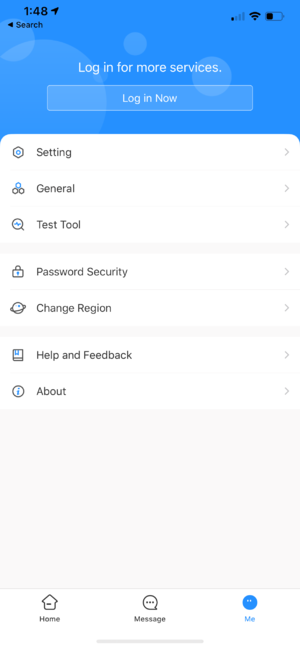
3. Select Sign Up
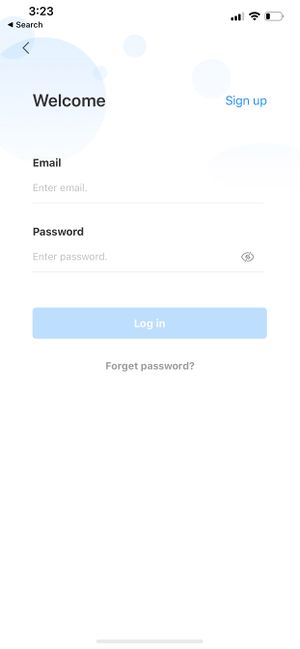
4. Enter a email address and enter a password for the account.
Check the User Service Agreement at the bottom of the screen.
Then select Get verification code.

A verification code will be sent via email to the provided address.
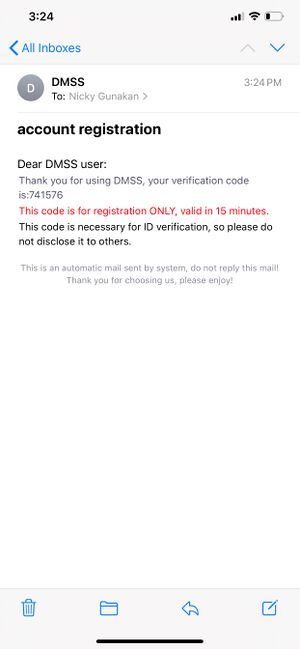
5. Enter the verification code then select OK.

6. A prompt will confirm a successful registration.
You can now log into the account with the email and password.
Related Articles
Diamond Mobile APP || Unbind device from DMSS Account
How to unbind a Diamond series device with DMSS. There are two parts to this guide. Part 1. Take a picture of the sticker that is physically on the device. Part 2. Open the DMSS app and make sure you are signed into the account you wish to take over ...
Diamond Mobile APP || Unbind device from DMSS Account (Legacy)
1. In the event that customer adding a Diamond device that already bound to an account, user will get this following error. 2. Click on Appeal. 3. Customer will be asked to upload a picture of their device with serial number label, and Proof of ...
Diamond Mobile App || DMSS Cloud Account Device Sharing
DMSS Cloud Account Device Sharing (This demonstration was done on an iPhone 12 with Software version 16.3.1) Before we begin, please make sure that the device we’re going to use was added to DMSS using the “ACCOUNT” option and not the “LOCAL” option. ...
Diamond Mobile App || Adding Device to DMSS Mobile App (Web GUI)
Diamond Mobile App || Adding Device to Mobile App (DMSS) Webgui On the web portal enter into: Settings > Network > P2P Scan the QR code that has the serial number on the right. On the app: Click on (+) sign > “scan QR code” > next > choose correct ...
Diamond Mobile APP || Remove Device
1. Launch DMSS Mobile App 2. Tap on Home and then select one of your added device that you wish to share. Tap on ... icon 3. Tap on Device Details 4. On the very bottom, you will see button to remove your device, tap on Delete.