Diamond Mobile APP || Backup on App

Diamond Mobile APP || Backup on App

Method 1: Video Clip

1. Tap on DMSS Icon Live Home.png Home. Tap on DMSS Icon Live Playback.png Playback.

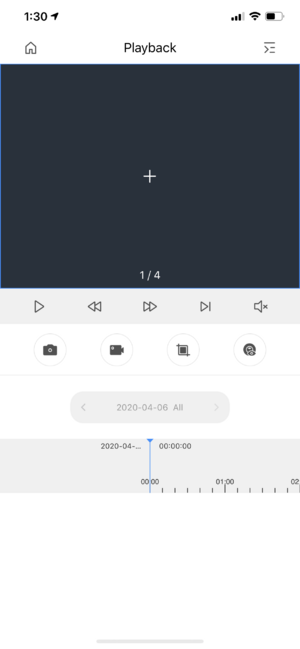
2. Tap on the + icon.

DMSS Backup Playback.PNG

3. Select your camera channel you wish to playback.
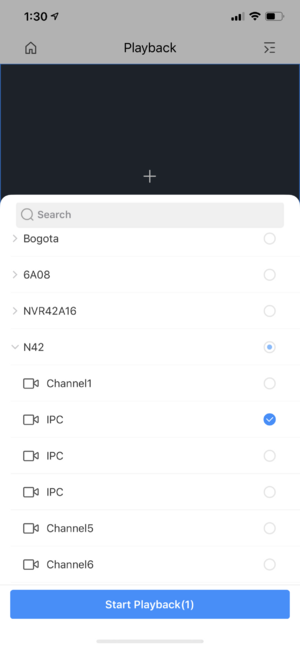
DMSS Backup Camselect.PNG

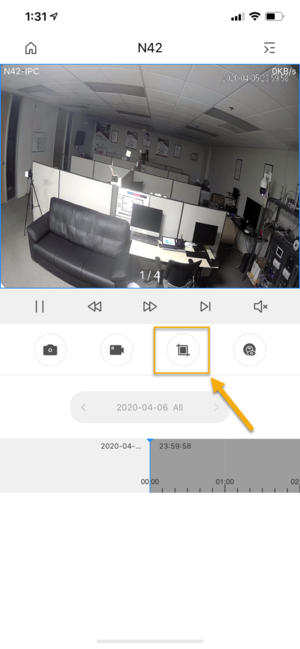
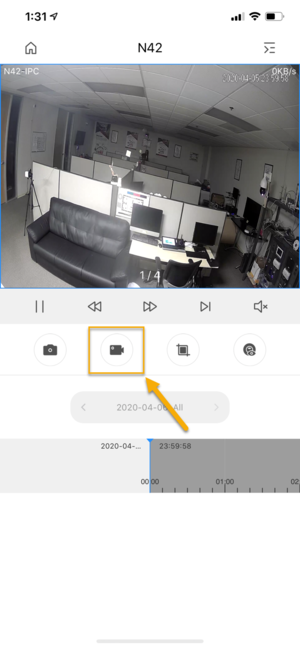
4. Video playback will start playing. To Start downloading the video, tap on Playback body clip n.png Clip button.

DMSS Backup Clip.PNG

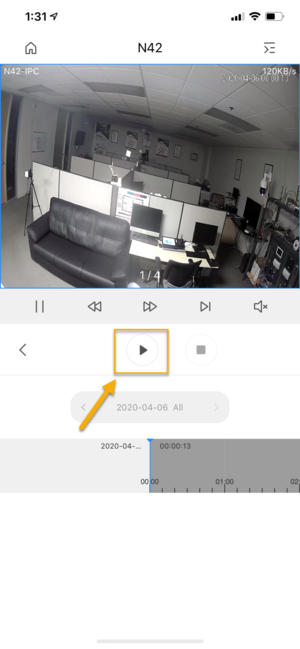
5. Move the timeline bar to set your Start Time, and then tap on Playback body play n.png Play button.

DMSS Backup Startclip.PNG

6. You will see the red line as your Start Time. Now move the timeline bar again to set your End Time, then tap on Stop button.
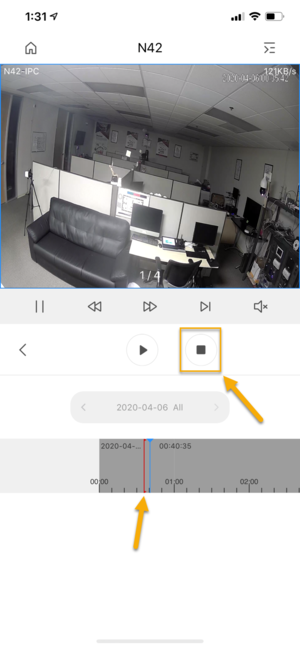
DMSS Backup Stopclip.PNG

7. Tap on OK.

DMSS Backup Save Notif.PNG

8. The App is now downloading Video playback clipping to the App local folder.
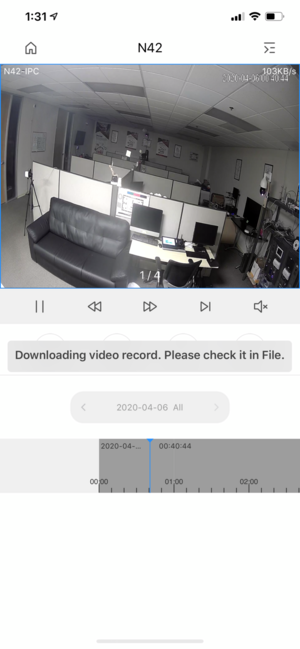
DMSS Backup Saved.PNG

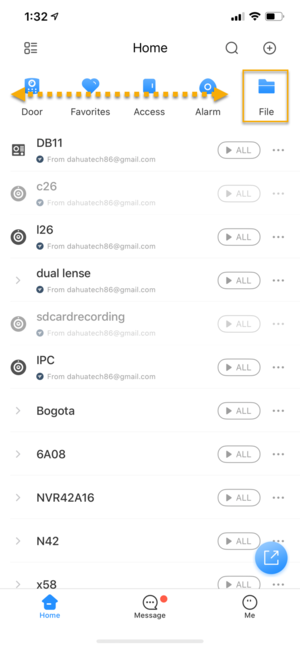
9. To locate the file, go back to the main menu. Swipe left on the home menu icon to find and tap on DMSS Icon Live File.png File.

DMSS Home File.PNG

10. The downloaded video clips will be available on this menu. Prior to proceed to next step, make sure that your video is 100% downloaded.
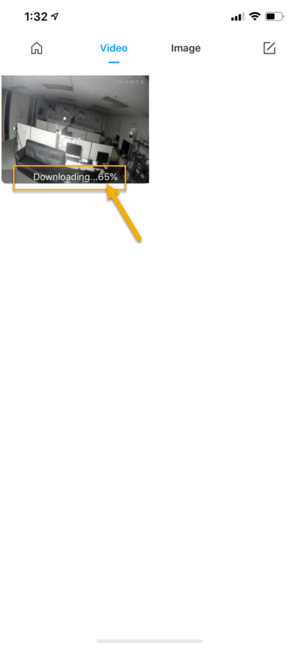
DMSS Download Progress.PNG

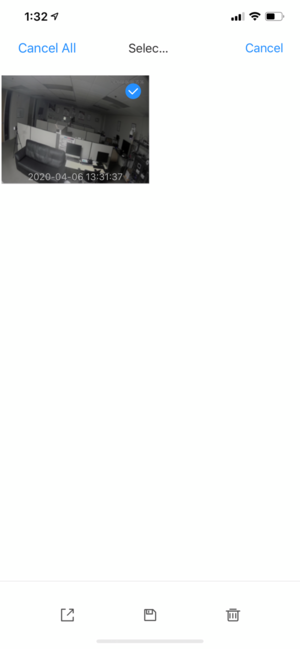
11. If you like to download the video clip to your mobile phone or share through the available App, you can tap on DMSS nav selection.png Pencil icon, and then select the video.
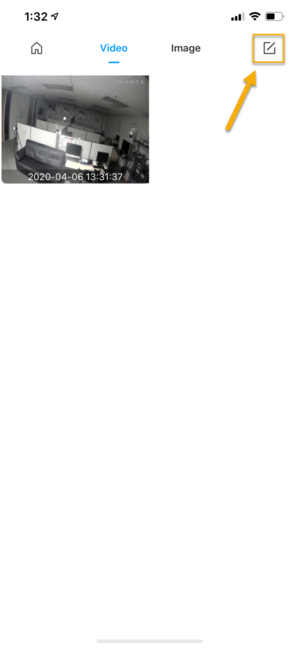
DMSS Backup Fileselect.PNG

DMSS Backup Select File To Download.PNG

12. On the bottom of the screen, you will see option to Share DMSS localfile share.png or Save DMSS localfile keep.png your video.

Note: If this is the first time you download or save clip to your mobile phone, it will ask Photo Permission, please make sure you press Ok to allow.
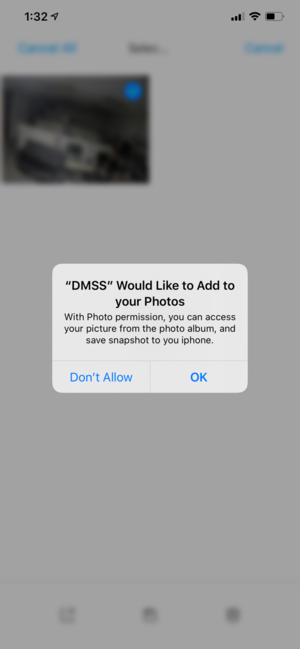
DMSS Backup Download Notif.PNG

Method 2: Recording mode

1. From the Home Menu. Tap on DMSS Icon Live Playback.png Playback.

2. Tap on the + icon.

DMSS Backup Playback.PNG

3. Select your camera channel you wish to playback.

DMSS Backup Camselect.PNG

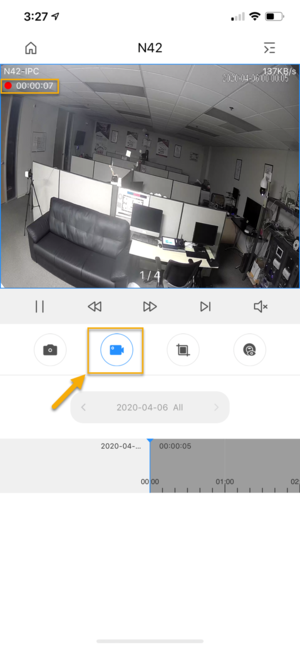
4. Video playback will start playing. To Start recording the video, tap on Access livepreview body record n.png Record button.

DMSS Backup Start Recording.PNG

5. The button will now be in blue color which means it is start recording. Tap on the Blue Access livepreview body record n.png Record button again to stop.

DMSS Backup Recording Started.PNG

6. The recorded video is now save to the App local folder.

7. To locate the file, go back to the main menu. Swipe left on the home menu icon to find and tap on DMSS Icon Live File.png File.

DMSS Home File.PNG

8. If you like to download the video clip to your mobile phone or share through the available App, you can tap on DMSS nav selection.png Pencil icon, and ten select the video.

DMSS Backup Fileselect.PNG

DMSS Backup Select File To Download.PNG

9. On the bottom of the screen, you will see option to Share DMSS localfile share.png or Save DMSS localfile keep.png your video.

Note: If this is the first time you download or save clip to your mobile phone, it will ask Photo Permission, please make sure you press Ok to allow.

DMSS Backup Download Notif.PNG


    • Related Articles

    • Diamond Mobile App || Playback and Backup for DMSS app

      Diamond Mobile App || Playback and Backup (DMSS) On the DMSS app homepage - click playback. Select the channel you want to view, change the date, record type, and time. You can also backup footage from your phone by clicking the scissors > “play” ...
    • Diamond Recorder || DMSS Diamond Mobile Notifications || Local GUI

      ***Note: You will need to download the DMSS app (gDMSS for Android and iDMSS for iPhone) from the phone’s respective app store.*** Please make sure the recorder is well connected to the Internet. And the status of the “P2P” shows Online and the DMSS ...
    • Titanium Mobile || Backup Footage on Titanium Mobile App Superlive Plus

      Titanium Mobile App || Backup Footage (SLP) On the SLP app homepage - select a camera Click on the playback icon (looks like a clapperboard used in films) From playback you can move through the timeline, select another channel to playback, change the ...
    • Diamond Mobile App || Adding Device to DMSS Mobile App (Web GUI)

      Diamond Mobile App || Adding Device to Mobile App (DMSS) Webgui On the web portal enter into: Settings > Network > P2P Scan the QR code that has the serial number on the right. On the app: Click on (+) sign > “scan QR code” > next > choose correct ...
    • Diamond Mobile APP || Remove Device

      1. Launch DMSS Mobile App 2. Tap on Home and then select one of your added device that you wish to share. Tap on ... icon 3. Tap on Device Details 4. On the very bottom, you will see button to remove your device, tap on Delete.