ENS Recorder || Firmware Updating a Recorder || Local GUI
Log into the system.

Once logged in, move the mouse to the top center area and click the “arrow-like” button for the main menu access.

After selecting the Menu, select the Maintenance tab.

On the Maintenance menu, select the Upgrade tab.
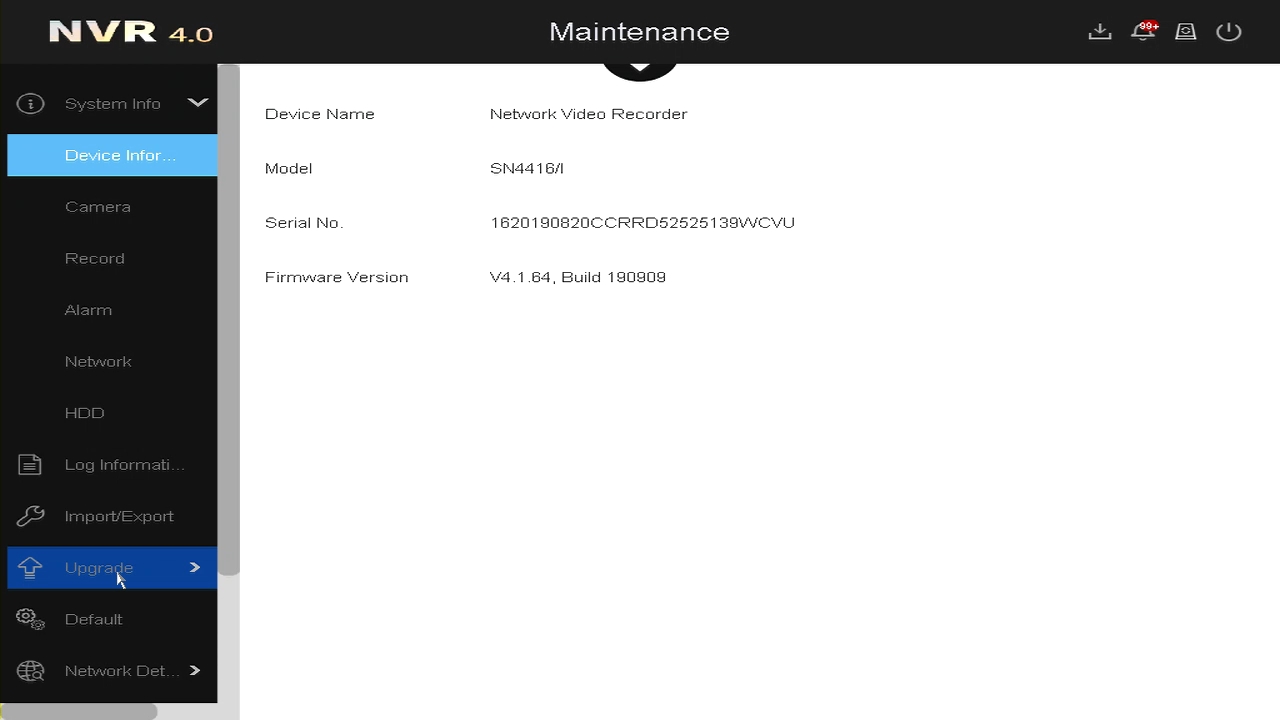
On the Upgrade menu, you will be able to select the file from the flash drive that is attached to the recorder before hitting the “Upgrade” button. You may get firmware from technical support or look for firmware through Support > Downloads > Firmware at www.ENSSecurity.com. You may also upgrade via Online Upgrade.

The Online Upgrade function will be supported with latest FW (V.4.1.61 or above). And the NVR needs to be registered on ENS Vision APP to prompt this function before using.

Related Articles
ENS Recorder || Backup onto USB || Local GUI
How to Backup footage to a USB drive on the ENS Recorder local GUI Starting on Live View in Full screen Right Click for the options box and click Menu. When there, click the Down Arrow to find and select Playback. In Playback select a camera or ...ENS Recorder || DVR Updated Local Interface Overview || Local GUI/EUI
The new local interface (EUI) applies to the following ENS Models: DVR iSD2104/6I-KC iSD2108/12I-KC iSD5104/8I-KC iSD5208/16I-KC iSD2216/24I-KC iSD5216/32I-KE ------------------------- Home Menu Live View Live view overview video Target detection ...ENS Recorder || NVR Updated Local Interface Overview || Local GUI/EUI
The new local interface (EUI) includes, but is not limited to, the following ENS Models: NVR SN3104/4P-KC SN3104/4PS-K SN3208/8P-K SN3208/8PS-K SN3216/16P-K SN3216/16P-Q SN3216/16PS-K ------------------------- Home Menu Live View Live View Overview ...ENS Recorder || Firmware Updating a Recorder || Web Client
To access the web client, please use a Windows based PC and use Internet Explorer as the web browser. Access the recorder’s web interface by typing in the IP address on the address bar of Internet Explorer. The path should look like the following: ...ENS Recorder || Prepping Recorder for ENS Vision || Web GUI
To access the web client, please use a Windows based PC and use Internet Explorer as the web browser. Access the recorder’s web interface by typing in the IP address on the address bar of Internet Explorer. The path should look like the following: ...