Diamond Recorder || Backup Video Files || Local GUI
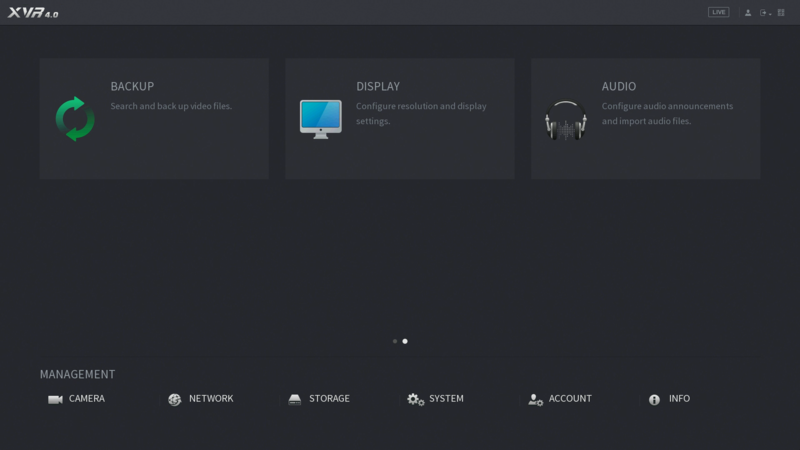
1. From the main menu, go to the second menu page, and click on Backup.
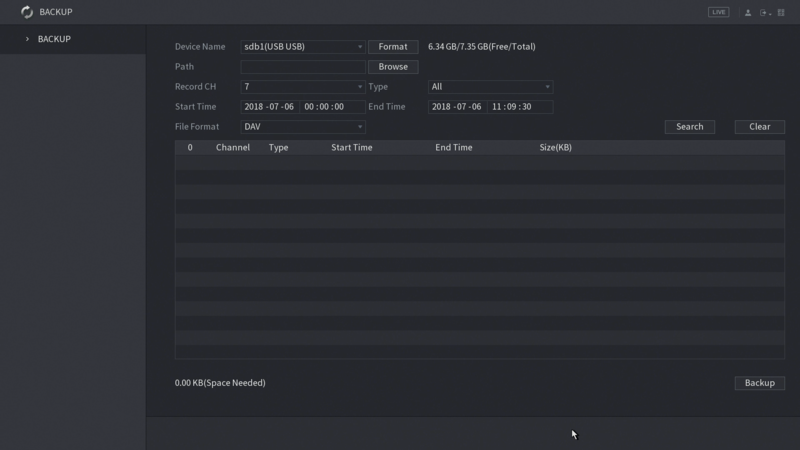
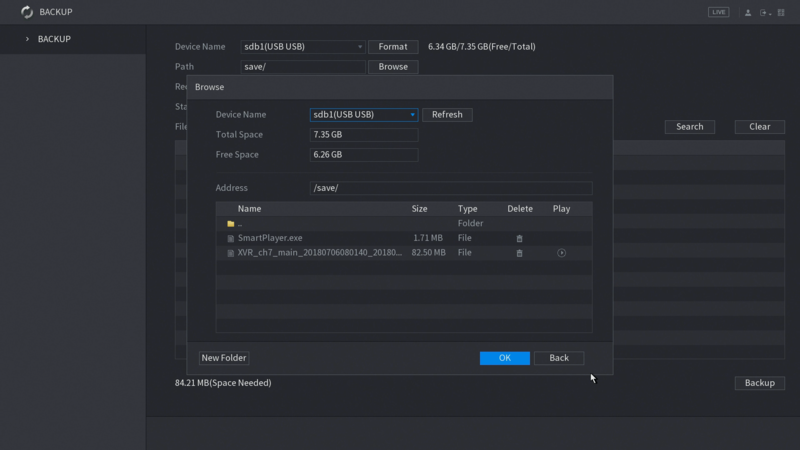
2. Backup page will launch as shown below:
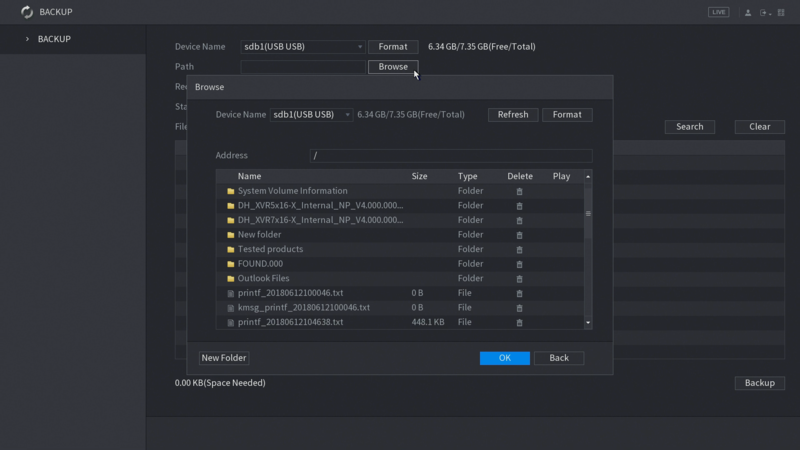
3. You must plug in an external drive to save your downloaded file. Select the path where you want to save the file at. From this pop-up screen, you have an option to create new folder. After you select, click OK.
4. Select the Record Channel you like to search. You can only search 1 channel at a time.
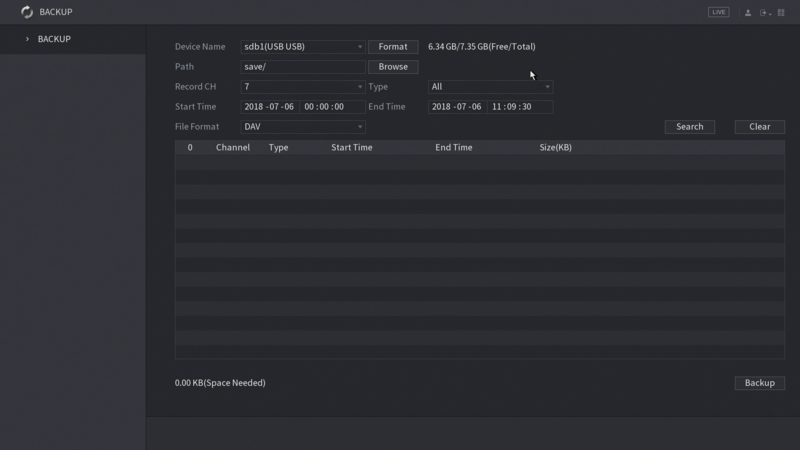
5. Select the Recording Type you like to search.
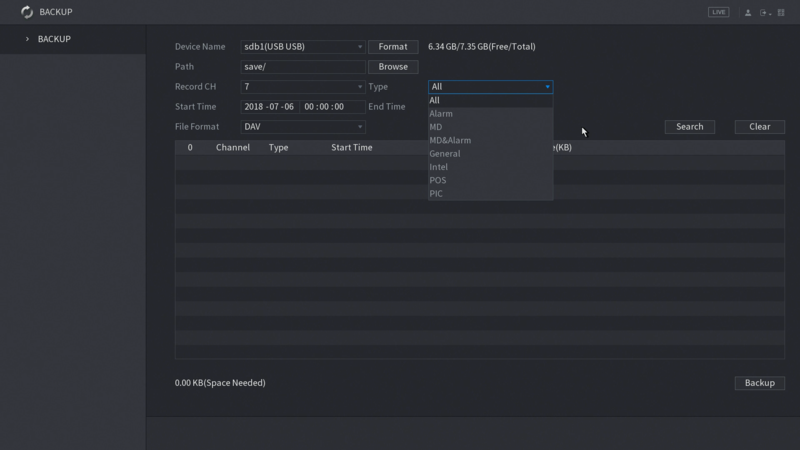
6. Set the start and end time for searching. Then click Search. All recorded files that meets your search criteria will shown on the list.
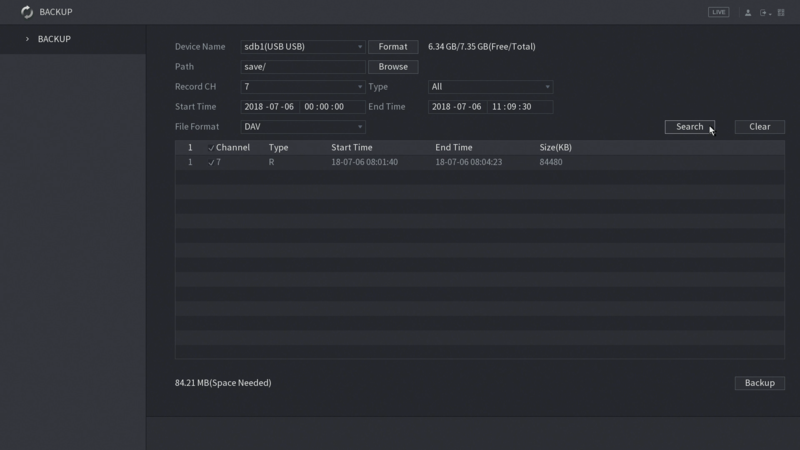
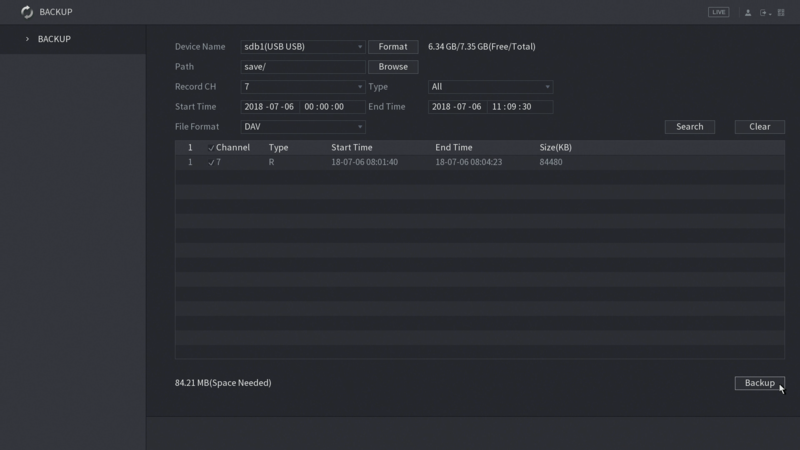
7. Select the files, and click Backup.
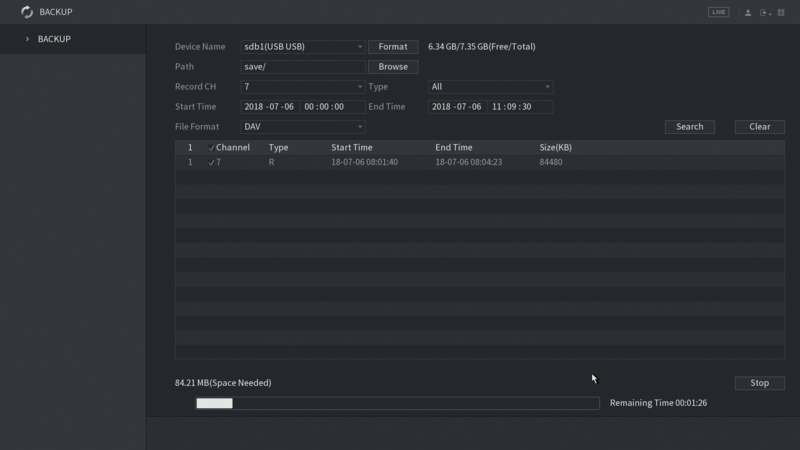
8. Downloading process start.
9. Once finished, the folder information will pop up, then click OK.
Related Articles
Diamond Recorder || Video Backup || Local GUI
Option 1: Once inserting the USB to the back of the recorder the device should be automatically found by the recorder allowing you to choose what type of backup you would like to download. Proceed by clicking on the file backup for video recordings. ...Diamond Recorder || Recorder Backup || WEB GUI
Login to your recorder. Please make sure you run the browser in Administrator mode. It will prompt you to install a webplugin in order to backup your recording correctly. You will be directed to the home page of the recorder. On the home page locate ...UNV Recorder || Footage Backup || Local GUI
Backing up Footage from the local recorder From the full screen view, Left Click to open the dropdown menu and select Menu > Playback Select the camera, date of the camera, and verify the time you are looking for Once verified click Start Clipping ...ENS Recorder || Backup onto USB || Local GUI
How to Backup footage to a USB drive on the ENS Recorder local GUI Starting on Live View in Full screen Right Click for the options box and click Menu. When there, click the Down Arrow to find and select Playback. In Playback select a camera or ...Diamond Recorder || Tripwire Setup(Local GUI)
Diamond Series Tripwire Setup (Local GUI) 1. From the Main Menu select AI. 2. Select Parameters on the left. Select Smart Plan. 3. Use the drop down box to select the camera channel. 4. Click and highlight IVS (You may need to deselect any other ...