Diamond Recorder || Setting Up Audio Recording for DVR || Local GUI
Enable audio source
1. Login using a web browser. 
2. Click on Setting > Camera.

3. Click on Encode. And then select the camera channel that support audio.

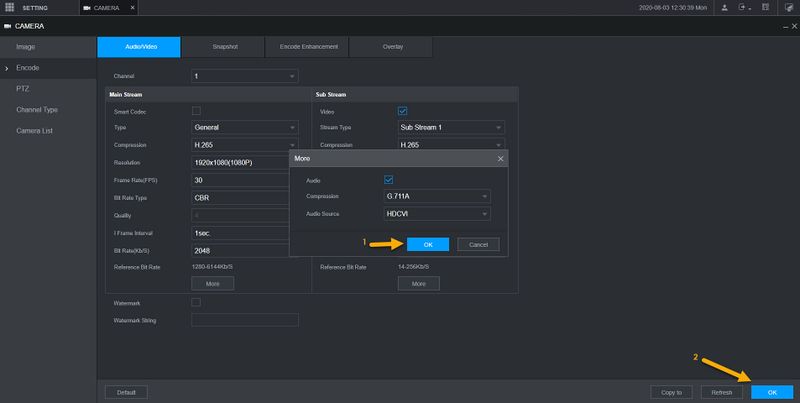
4. Click on More and checkmark to enable Audio.

6. Select the Audio source for your HD-CVI camera. If your HD-CVI camera has built-in Microphone, select HDCVI as the audio source. Local option is if you are connecting external microphone to the recorder.
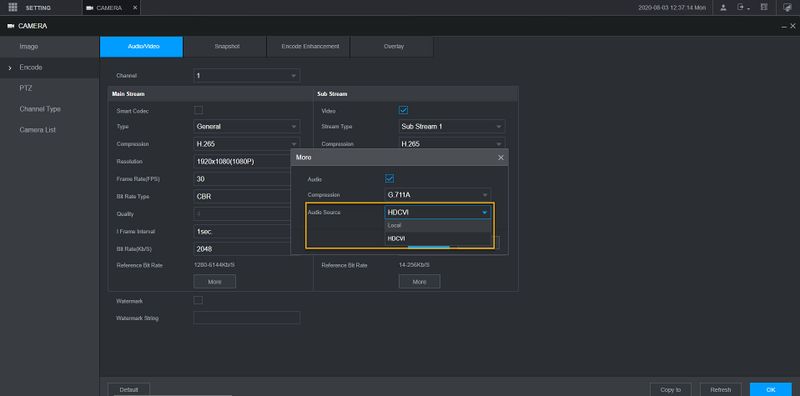
7. Click OK, and then click OK again on the bottom right hand corner.
Setup audio recording
1. Login using a web browser.

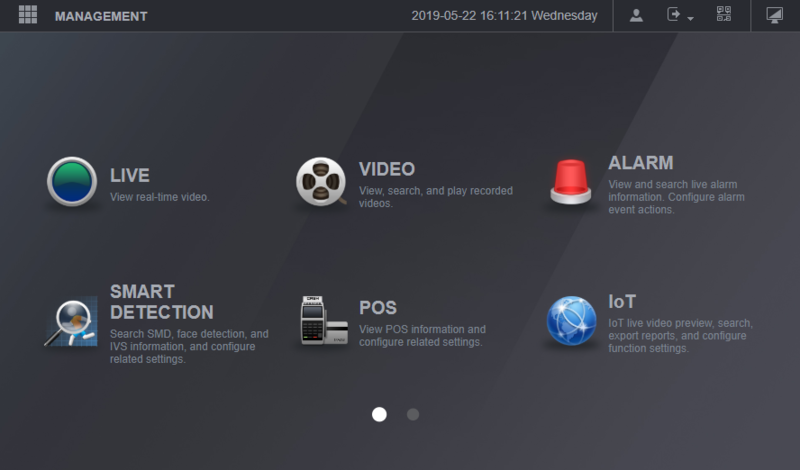
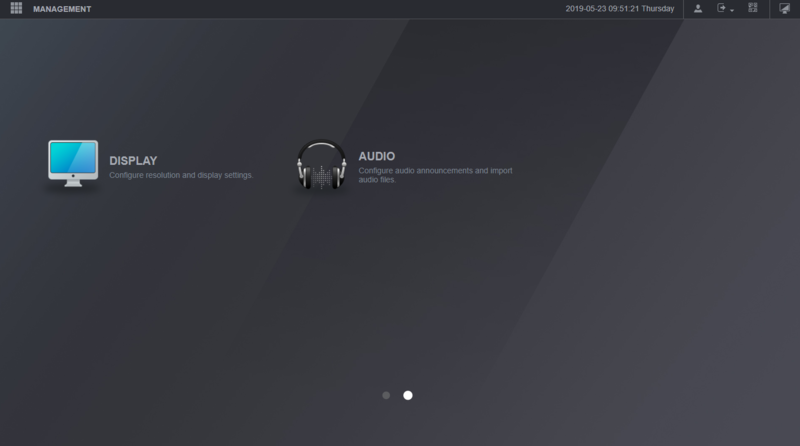
4. Click on the Audio Option.
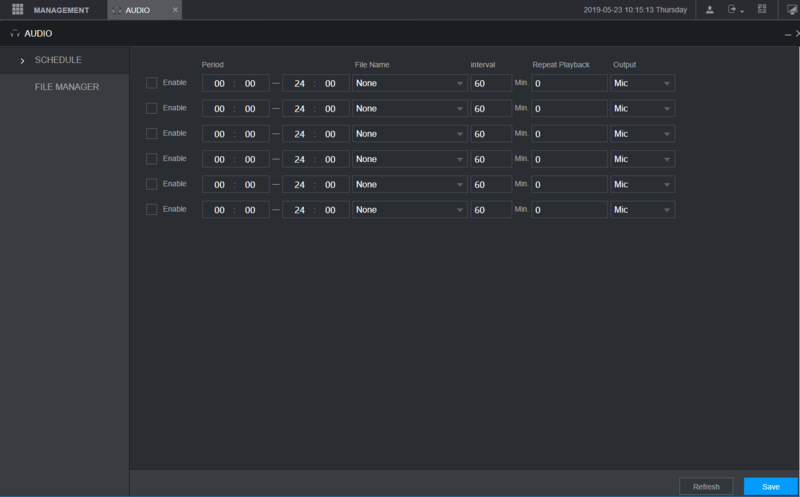
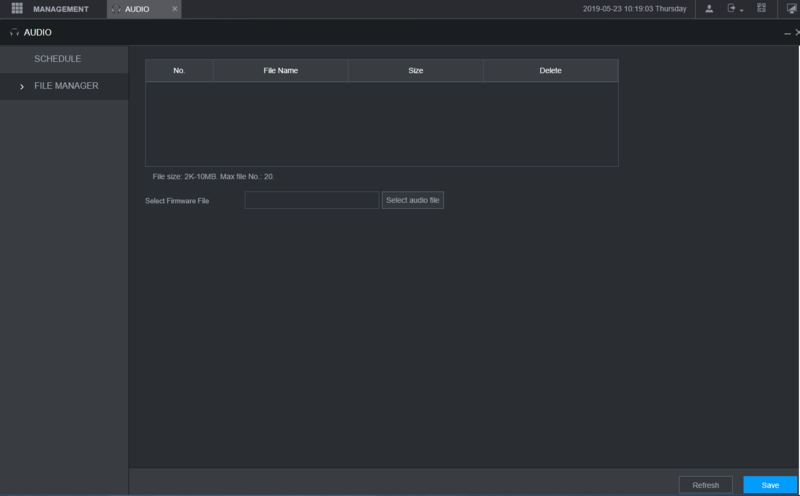
5. Audio File Manager Option.
Related Articles
Diamond Recorder || Setting Up Alarm Recording || Local GUI
Setup Alarm Input From main menu, click on Alarm. Click on Alarm-in Port. We are using XVR 72 series for this example. Select the Alarm input number that you like to use. This number is correspond to the alarm port on the back of recorder. 1. Click ...Titanium Recorder || ENS Analog HD Camera Audio Over COAX on Titanium DVR || WEB GUI
This report is composed to show findings of an ENS Analog HD Camera, Specifically model SCC35T4M/28-H that shows camera's built-in MIC working over COAX with a Titanium DVR. Analog HD camera, Model SCC35T4M/28-H Needs to know if Built-in Mic will ...Diamond Recorder || Setting Up Recording Schedules || Local GUI
Log into the system by entering the username and password. After logging in, right click on the screen and select “Menu” On the Main Menu page, select Storage After selecting Storage, select Schedule and this will take you to the page where you will ...Diamond Recorder || Setting Up Recording Schedules || Web GUI
***Note: You must use Internet Explorer to view the system via web interface*** To access the web client, please use a Windows based PC and use Internet Explorer as the web browser. Access the recorder’s web interface by typing in the IP address on ...Diamond Recorder || Setting Up IVS Recording || Web GUI
Step One: Creating an IVS Rule on the camera and enabling Smartplan Login to the Camera's WEBUI Go to Settings>Events>IVS Click on the green "+" icon to add a rule. You can also rename the rule by double clicking under "Name". We will be adding a ...