Diamond Recorder || How to Setup People Counting || Local GUI
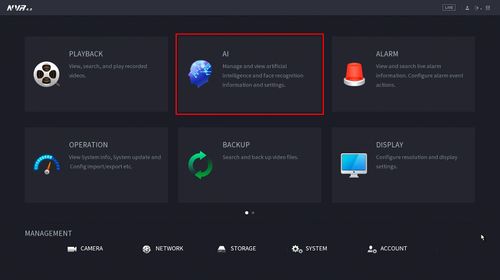
1. From the Main Menu click AI
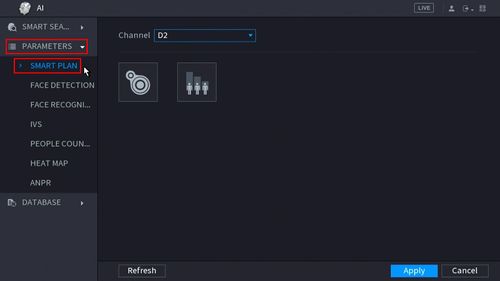
2. Click Parameters > Smart Plan
3. Click the People Counting icon to enable.
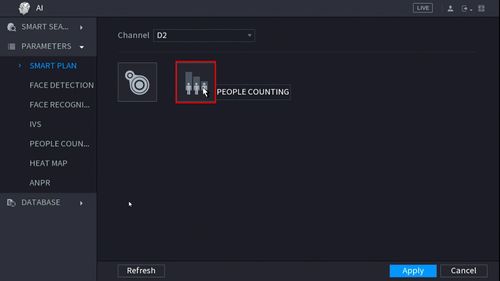
4. The icon will turn blue when selected.
Click Apply to save

5. Click Parameters > People Counting
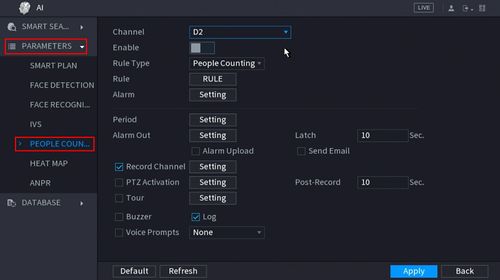
6. Use the drop-down box to select the channel.
Click the toggle button to enable
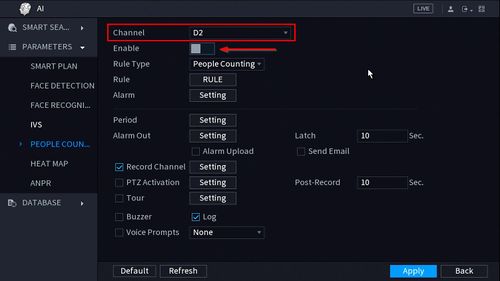
7. Use the drop-down box next to Rule Type to select from the People Counting feature options. There are two options:
- People Counting
- In Area No.

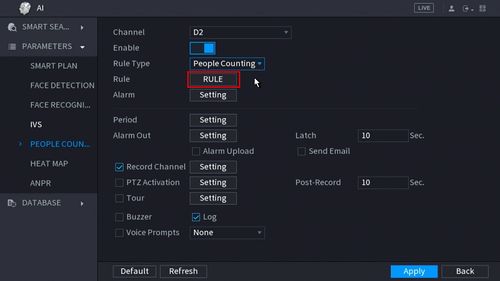
8. Click the RULE button to create the area and rule for the People Counting
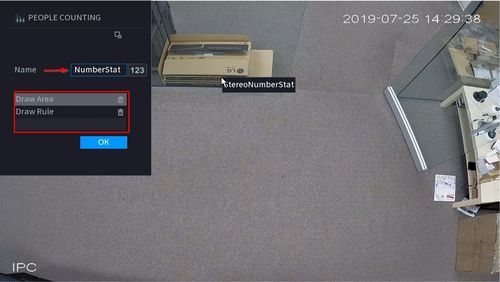
9. You can enter a name for the rule in the Name field
Click Draw Area or Draw Rule to create/edit the current rules.
Click the  icon to delete the rule.
10. To create the detection area start by clicking 'Draw Area' then left click and drag in the video frame to draw the area.
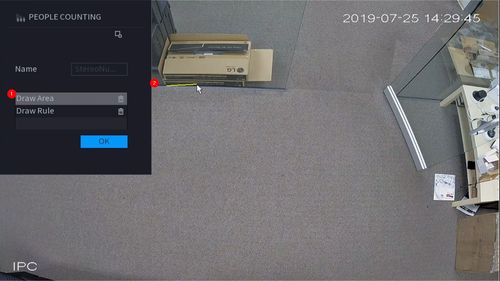
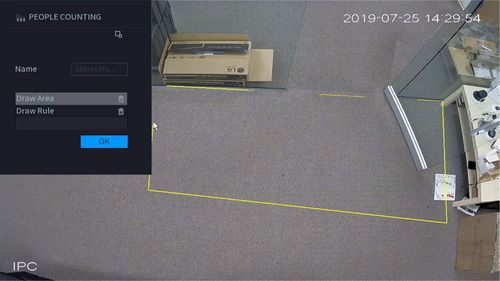
Right click to complete the drawing
11. To create the detection line start by clicking 'Draw Rule' then left click and drag in the video frame to draw the line.
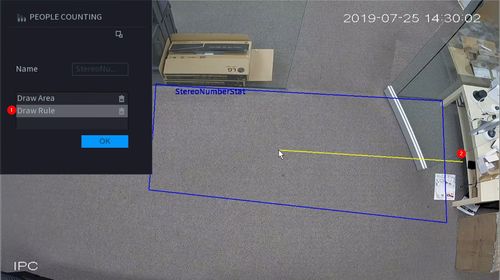
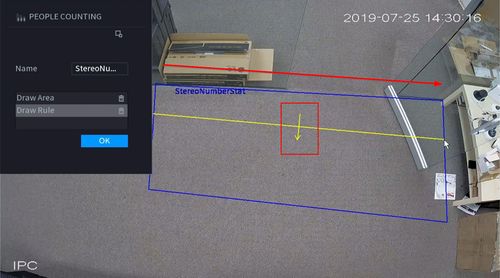
The arrow in the line will denote which direction will count as a 'Enter' or 'Exit'
Draw the arrow from Left to Right
To create a Downward facing arrow
Draw the arrow from Right to Left
To create an upward facing arrow
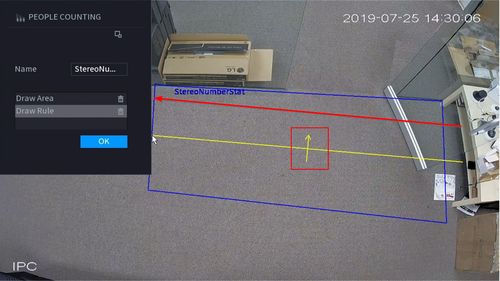
12. Click OK to save the Area and Rule Drawings
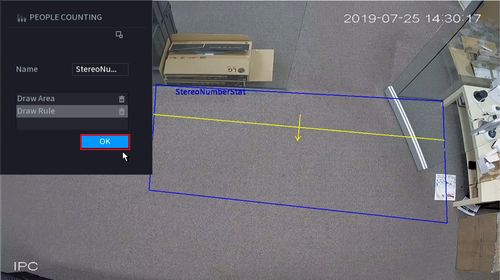
13. Click 'Setting' next to Alarm to configure additional settings for People Counting

14. Use the top part of the menu to configure the settings for the On Screen Display Overlay for People Counting
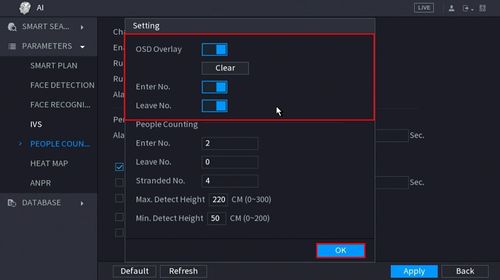
OSD Overlay: Toggle to enable or disable overlay. Press the 'Clear' button to clear the current People Counting values
Enter No.: Toggle to enable or disable the overlay for counting people who Enter
Leave No.: Toggle to enable or disable the overlay for counting people who Leave
15. Use the lower part of the menu to configure the parameters for the People Counting alerts and installation configuration
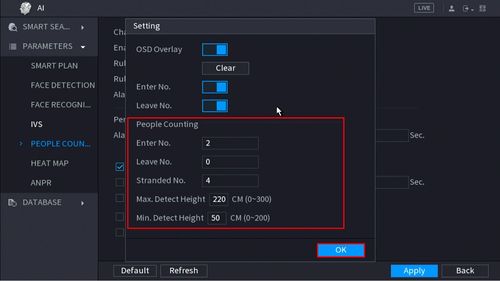
Enter No. - Alarm will trigger when this # of people are counted who Enter
Leave No. - Alarm will trigger when this # of people are counted who Leave
Stranded No.
Max Detect Height (in cm)
Min. Detect Height (in cm)
Click OK once all parameters have been set
16. To create a schedule for People Counting click the 'Setting' button next to Period

17. Use the interface to create a schedule for People Counting

Click OK once the schedule has been completed
By default it will count 7 days a week, 24 hours a day
18. Configure the alarm output for when the People Counting alarms are met (Enter/Exit Number, Stranded)
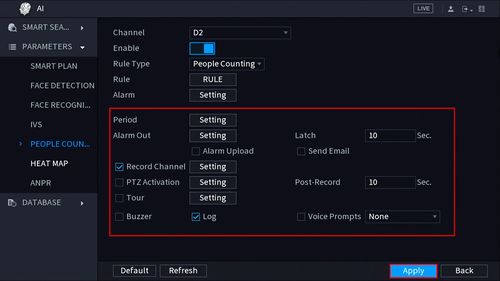
Click Apply once parameters have been set
Completed People Counting setup with On Screen Display enabled at Live View

Related Articles
Diamond Recorder || Tripwire Setup(Local GUI)
Diamond Series Tripwire Setup (Local GUI) 1. From the Main Menu select AI. 2. Select Parameters on the left. Select Smart Plan. 3. Use the drop down box to select the camera channel. 4. Click and highlight IVS (You may need to deselect any other ...Titanium Recorder || Configure People/Vehicle detection (1.4.4) || Web GUI
Your IPC must support the People/Vehicle Perimeter function to configure. Log into your recorder and click "Function Panel" Click on the People/Vehicle Perimeter option. Tripwire configuration Click the "Tripwire" option. Enable the function and ...Diamond Recorder || Tripwire Setup (Web GUI)
Diamond Series Tripwire Setup (Web GUI) 1. From the Main Menu select AI 2. Select Parameters on the left. Then select Smart Plan. Select the camera channel at the top. Select and highlight IVS (You may need to deselect any other options). Select OK ...Diamond IPC || How to Set People Counting Function (WEB 5.0) ||
How to Set People Counting Function (WEB 5.0) This knowledge base article provides instructions on setting up the People Counting function for devices using the WEB 5.0 firmware. People Counting enables the system to count the number of people ...Diamond Recorder || Recorder Start Up Wizard || Local GUI
1. When you first turn on the recorder you will be greeted with the region settings. Click on the drop down menu and select "United States" and click Next. 2. Select the proper time zone setting for your region. 3. You will now be prompted to input a ...